Dynamic Network Manager - Get started on Dynamic Network Manager for Internet Dedicated, Private IP, E-Line, E-LAN and Activate service.
Network Manager - Sets User Guide settings, Port Protection, reserve a toll-free number, view and manage inbound contact center numbers, learn about the termination inventory screen and more.
Traffic Monitor - Gain insight into your calling patterns and traffic volumes, get started on Traffic Reporting and view a list of all the reports available through Traffic Reporting.
How to request access for the Traffic Monitoring and Traffic Reporting?
User Guide instructions will begin here:
- Log in into the Verizon Enterprise Center (VEC) portal.
- A pop up will appear to enable your Traffic Monitoring & Traffic Reporting features.
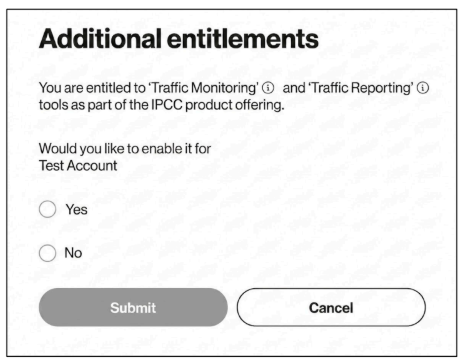
- Select "Yes" and click "Submit": Your request completes immediately, and a confirmation message will display
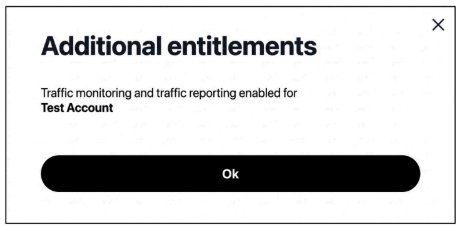
- Select "No": You can return to request access at any time via My Workspace in VEC.
- If you select "No" or "Cancel" initially, you can still enable Traffic Monitoring and Reporting later.
- Use "Get More Access": Simply click Get More Access within your tasks to view and filter related services.
- Clicking this button takes you to your My Profile page, where the prompt will reappear. Select Yes to instantly activate your access.
- Choosing No keeps your current settings. You can return to update your access at any time via My Workspace in VEC.
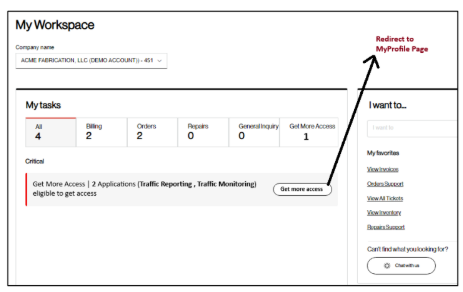
- New users who skipped the initial setup will see the Get More Access task.
- Clicking Get More Access opens the prompt. Select Yes to instantly enable your features.
- If you choose No, you can still activate these features later by visiting the Profile section in VEC.